At first glance, CaptureGem and OBS Studio appear to solve the same problem: save a live video stream to your computer. In practice, they approach that job from opposite directions.
OBS is a production studio. It captures windows, screens, cameras, audio sources, graphics, and scenes. CaptureGem is a purpose-built cam recorder. It watches for streams, starts automatically, handles several recordings, and organizes the results.
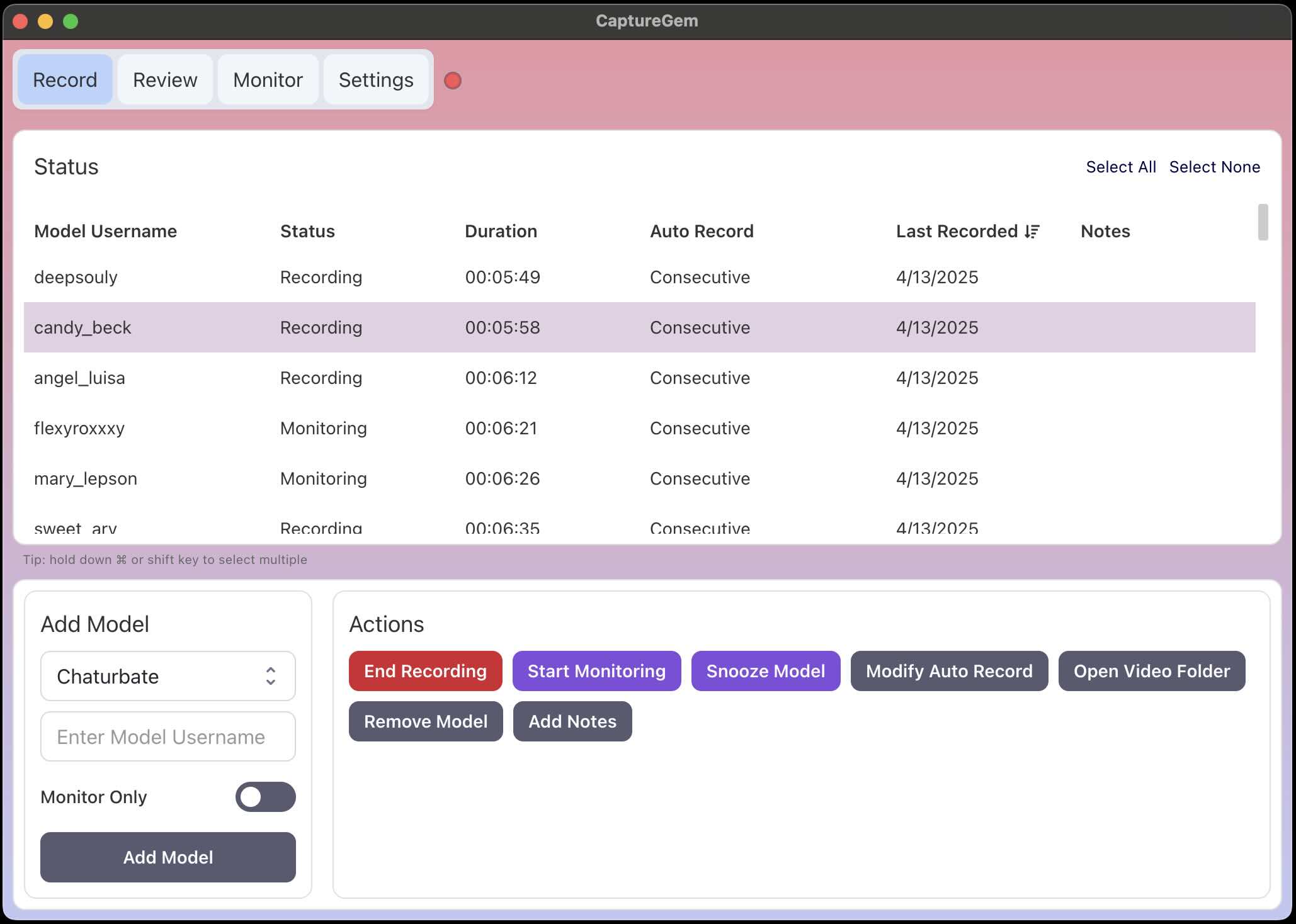 CaptureGem puts monitoring and automatic recording controls in the same view.
The short answer: choose OBS when you are present and want control over a screen recording. Choose CaptureGem when you want the recording workflow to run for you.
The core difference is automation
With OBS, you generally open the stream, arrange your source, confirm the audio path, and press record. That is a perfectly good workflow for a planned session.
Cam streams are less predictable. A performer might go live while you are away, return after a disconnect, or broadcast on a different supported platform. CaptureGem is built around those events. Its auto-record workflow can start when a model comes online and resume after interruptions.
That automation is the main reason CaptureGem ranks higher for this specific use case.
Side-by-side
| Feature | CaptureGem | OBS Studio |
|---|---|---|
| Primary purpose | Cam and stream recording | General recording and broadcasting |
| Start mode | Automatic or manual | Primarily manual |
| Multiple simultaneous streams | Built for it | Possible with configuration |
| VR stream support | Purpose-built support | Screen capture workaround |
| Review library | Built in | File-system based |
| Scene and overlay controls | Basic recording focus | Excellent |
| Price model | Free download, premium features | Free and open source |
Where OBS is the better choice
OBS wins when you are creating a composed video rather than simply preserving a stream. Its scenes, audio mixer, filters, hotkeys, and plugin ecosystem give you far more production control.
Choose OBS if:
- you are recording one session while watching it;
- you need overlays, multiple windows, microphones, or camera inputs;
- you want a free, open-source tool;
- you enjoy configuring your capture pipeline.
Where CaptureGem is the better choice
CaptureGem wins when the stream itself is the event and you do not want to supervise every capture.
Choose CaptureGem if:
- you want recording to begin when a model goes live;
- you follow several models or platforms;
- you want VR and standard streams in the same workflow;
- you prefer direct, organized recordings over managing screen-capture scenes;
- you want built-in reviewing, tagging, favorites, and editing tools.
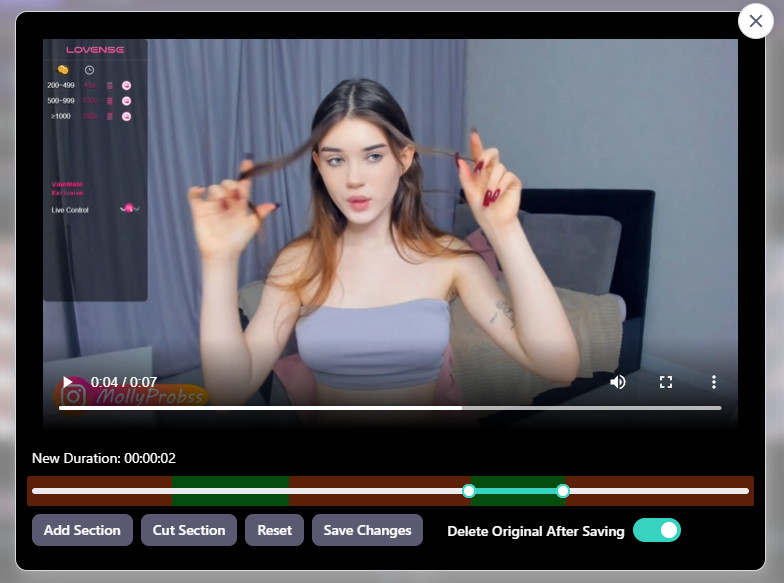 The built-in editor can trim and keep selected sections without leaving the review workflow.
Quality and performance
Screen recording captures what your system renders. Direct stream recording can avoid the extra work of rendering a page and then encoding that screen again. The exact result depends on the source and configuration, but the purpose-built route is generally the cleaner fit when preservation—not production—is the goal.
OBS can still produce excellent files. You simply need to choose resolution, frame rate, encoder, bitrate, audio, and source settings carefully.
The verdict
OBS Studio remains our favorite free manual recorder. It is mature, flexible, and useful far beyond cam sites.
For cam recording specifically, CaptureGem is the better fit. Automatic go-live recording, multi-stream handling, VR support, and a built-in review workflow remove the exact chores that make a generic recorder inconvenient.